1. Introduction to TCBS MCP Server
Model Context Protocol (MCP) is an open standardized protocol developed to connect popular AI models such as Claude, Gemini, and ChatGPT with external data sources. The TCBS MCP Server delivers a comprehensive integration solution, enabling AI models to actively communicate with and interpret complex data on TCInvest — without requiring users to copy data manually.
Key features provided through the TCBS MCP Server include:
- Real-time market data: Continuously synchronized stock quote data, rights execution schedules, corporate news & events, and technical analysis indicators.
- Corporate data: Comprehensive company profiles covering development history, management teams, ownership structures, major shareholders, and financial statement data.
- In-depth stock analysis: Corporate research reports, stock valuation tools pre-loaded with peer and industry metrics, and discounted cash flow projection models.
- Securities news: Continuously updated news and events related to listed companies, along with commentary and recommendations from expert analysts.
2. How to Connect MCP
To ensure absolute security for customer accounts, TCBS applies a centralized authorization process based on the industry-standard OAuth 2.0 protocol.
Claude Desktop / Claude.ai
🔗 4 STEPS TO CONNECT TCBS WITH CLAUDE
Step 1: Go to claude.ai (or open the Claude mobile app or Claude Desktop) → Sign in to your Claude account (or create one if you don’t have one yet).
Step 2: Open Settings or Customize → Select ‘Connectors’ → Search for ‘TCBS’ in the list, or choose ‘Add custom connector’.
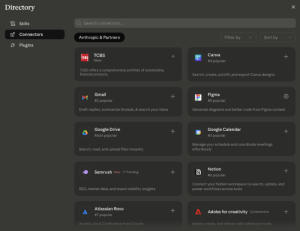
Option A: Click ‘+’ on the TCBS icon to begin the connection.
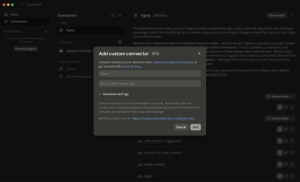
Option B: Fill in the TCBS MCP details — Name and Remote MCP server URL.
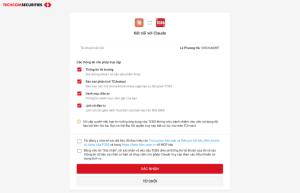
Step 3: You will be redirected to the TCBS login page → Click ‘Confirm’ to allow Claude to connect to TCBS MCP and complete the TCBS iOTP authentication.
Step 4: Connection confirmed — return to Claude and start interacting. → Give the AI a prompt. Example: “Analyze TCX and its industry peers — is the current price high or low relative to its fundamental valuation?”
3. MCP Tools
The TCBS MCP Server provides a specialized toolset organized into functional groups: stock and company overview data, financial statement analysis (by period and industry comparison), financial forecasting, technical assessment and multi-dimensional rankings, insider and foreign trading tracking, and corporate news & events updates. When a user asks the AI a question, the system automatically identifies the request and invokes the appropriate tool to retrieve data directly from the TCInvest platform. The full list of available tools and their descriptions is presented in the table below:
➕ Click to expand the full MCP tools list
| Tool ID | Tool Name | System Function Description |
|---|---|---|
| getTickerOverview | Stock Overview | Retrieves a comprehensive overview of 22 core data fields for a ticker (exchange, sub-sector, employee count, weekly/monthly/yearly price changes, foreign ownership ratio, and more). |
| getCompanyOverview | Company Profile | Displays a detailed company profile including founding history, growth outlook, core risks, and long-term business strategy. |
| getStockRatio | Key Financial Ratios | Analyzes over 35 fundamental financial metrics in real time: MarketCap, P/E, P/B, ROE, ROA, EPS, and BVPS. |
| getStockSameIndustry | Peer Comparison | Compares stocks within the same technical sub-sector, including P/E, P/B, ROE, beta coefficient, and relative correlations. |
| getSubCompany | Subsidiaries & Associates | Looks up the full list of subsidiaries and associated companies along with their corresponding ownership percentages (pagination supported). |
| getKeyOfficers | Board & Management | Lists executive management and Board of Directors members with their full names and titles. |
| getLargeShareHolders | Major Shareholders | Lists major shareholders and their stakes: name/organization, number of shares held, and ownership percentage. |
| getListAuditFirm | Audit History | Retrieves the historical record of independent auditing firms that have audited the company’s financial statements by fiscal year. |
| getIncomeStatementForNonBank | Income Statement – Non-bank | Income statement for non-banking entities: net revenue, gross profit, operating income, net profit after tax (NPAT), and EBITDA. |
| getIncomeStatementForBank | Income Statement – Bank | Income statement for banking entities: Net Interest Income (NII), Total Operating Income (TOI), provisioning costs, and NPAT. |
| getBalanceSheetForNonBank | Balance Sheet – Non-bank | Balance sheet for non-banking entities: detailed assets, liabilities, equity, cash holdings, and inventory. |
| getBalanceSheetForBank | Balance Sheet – Bank | Balance sheet for banking entities: customer loans, customer deposits, investment securities, and loan loss provisions. |
| getCashFlowForNonBank | Cash Flow – Non-bank | Cash flow statement for non-banking entities: operating, investing, and financing cash flows, plus Free Cash Flow (FCF). |
| getCashFlowForBank | Cash Flow – Bank | Specialized cash flow statement designed for the specific structure of the banking sector. |
| getCashFlowAnalyze | Cash Flow Analysis | In-depth cash flow structure analysis: relationship between EBITDA, capital expenditure (CAPEX), dividend payments, debt changes, and working capital. |
| getFinancialRatioForNonBank | Financial Ratios – Non-bank | Historical series of in-depth valuation metrics for manufacturing/service companies: P/E, P/B, EV/EBITDA, EPS, BVPS, and ROE across periods. |
| getFinancialRatioForBank | Financial Ratios – Bank | Historical series of banking-sector financial metrics: Net Interest Margin (NIM), Cost-to-Income Ratio (CIR), Non-Performing Loans (NPL), and Loan-to-Deposit Ratio (LDR). |
| getProjectionRatio | Projected Financial Ratios | Forward-looking financial metric forecasts: projected P/E, P/B, ROE, ROA, EPS, and planned dividend yield. |
| getFinancialdata | Financial Forecasts | Quantitative forecasts for revenue, operating profit, minority interest income, Free Cash Flow (FCF), and future equity structure. |
| getIncomeStatementIndustryForNonBank | Industry Income Statement – Non-bank | Aggregated average industry income statement data for non-banking companies. |
| getIncomeStatementIndustryForBank | Industry Income Statement – Bank | Aggregated average industry income statement data for commercial banks. |
| getBalanceSheetIndustryForNonBank | Industry Balance Sheet – Non-bank | Aggregated average industry balance sheet data for non-banking companies. |
| getBalanceSheetIndustryForBank | Industry Balance Sheet – Bank | Aggregated average industry balance sheet data for the entire banking and credit institution system. |
| getCashFlowIndustryForNonBank | Industry Cash Flow – Non-bank | Aggregated average industry cash flow data for non-banking companies. |
| getCashFlowIndustryForBank | Industry Cash Flow – Bank | Aggregated average industry cash flow data for the banking sector. |
| getFinancialRatioIndustryForNonBank | Industry Financial Ratios – Non-bank | Average industry valuation metrics for the non-banking sector: P/E, P/B, EV/EBITDA, and ROE — useful for identifying margin of safety. |
| getFinancialRatioIndustryForBank | Industry Financial Ratios – Bank | Average industry financial metrics for the banking sector: NIM, CIR, NPL, and LDR across the entire system. |
| getTooltip | Industry Benchmark Comparison | Quick comparison tool for 14 core financial metrics of a specific company against the Top 200 market leaders and the industry average. |
| getGeneralRating | Multi-dimension Stock Rating | Comprehensive stock scoring system across 7 dimensions: composite score, business model, operational efficiency, financial health, valuation, market liquidity, and price strength. |
| getHistoryRecommendation | Analyst Recommendation History | Aggregated historical investment recommendations from securities firms: Buy/Sell/Hold ratings with target prices. |
| getStockRecommend | Related Stock Recommendations | Suggests related stocks of interest to investors in the same sector, with P/E, P/B ratios, and beta coefficients. |
| getAssetProPortion | Asset Structure Analysis | Analyzes the allocation of short-term vs. long-term assets and the company’s capital structure optimization (Debt/Equity ratio). |
| getVolumeAndForeign | Foreign Trading & RS Rank | Tracks foreign investor buy/sell volumes, net foreign value, and daily Relative Strength (RS) price rank scores. |
| getInsiderDealing | Insider Transaction History | Detailed history of stock transactions by insiders and related parties: transaction date, method, volume, price, and post-transaction ownership percentage. |
| getDividendPaymentHistories | Dividend History | Historical dividend payment data: ex-dividend date, payment method (cash/stock), and detailed payout ratio. |
| getPriceVolatility | Price Volatility Analysis | Analyzes stock price volatility range: 52-week high/low, price standard deviation, and short-term volatility risk analysis. |
| getTechnicalIndicator | Technical Indicators | Provides real-time technical analysis indicators including Moving Averages (MA), RSI, MACD, Bollinger Bands, trend direction, and action signals. |
| getBusinessResults | Business Results Chart Data | Business performance data optimized specifically for chart visualization. |
| getTickerActivityNews | Corporate Activity News | Lists internal activity news, press releases, and core content summaries from the company (pagination supported). |
| getActivityNewsDetail | Activity News Detail | Retrieves the full detailed content of a specific corporate activity news article by its identifier. |
| getTickerEventNews | Corporate Events | Updates on major corporate events: Annual General Meeting schedules, rights record date cut-offs, and bonus share issuances. |
| getEventNewsDetail | Event Detail | Displays detailed information for a specific event: ex-rights date, final registration date, and attached resolution content. |
| calculate_pe_ratio | P/E Ratio Calculator | Real-time P/E Calculator that computes a stock’s P/E ratio based on the latest matched price on the exchange. |
| calculate_pb_ratio | P/B Ratio Calculator | Real-time P/B Calculator that computes a stock’s P/B ratio based on continuous matched price movements. |
| tca-tcanalysis_tcanalysis_getGaugeChart | Gauge Chart Analyzer | Returns the composite rating score and technical analysis summary for a stock. |
| tca-tcanalysis_tcanalysis_getLongTermCandleChart | Long-term Candle Chart Link | Provides historical candlestick price bars (Daily, Weekly, Monthly) for long-term trend analysis. |
| tca-tcanalysis_tcanalysis_getIndustries | Industry List Lookup | Returns the full list of all industry classifications available on the Vietnamese stock market. |
| tca-tcanalysis_tools_get_current_timestamp | System Timestamp Checker | Returns the current time as a Unix timestamp (seconds) and ISO format for use as a reference. |
4. Personal Data Protection
Techcom Securities (TCBS) fulfills its notification obligation under Clause 3, Article 10 of Decree 356/2025/ND-CP on Personal Data Protection.
(i) Personal data shared and processed
Once a data subject activates the TCBS MCP connection, TCBS will share data with the AI application via the MCP protocol. The shared data includes both basic personal data (identification information, account numbers) and sensitive personal data (financial information, securities transaction history, asset allocation ratios).
The data sharing described above is carried out solely on the basis of the data subject’s consent. By clicking “Confirm Connection” during the OAuth authentication step, the data subject performs a verified consent action. The system only allows the data subject to query their own account data and cannot access data belonging to any other customer.
(ii) Algorithmic operating principles
Layer 1 — Data retrieval via MCP tools: The tools connect directly to the TCInvest system, retrieve data under your OAuth 2.0 session, and return real-time financial, market, and portfolio information. The system operates in Read-Only mode — no trades are executed and no account modifications are made.
Layer 2 — AI analysis (Large Language Model): The AI model uses the retrieved data to synthesize, compare, calculate metrics, and provide analytical commentary. The algorithm does not make investment decisions on your behalf — all outputs are analytical references only. Personal data is not retained in the AI environment after the session ends (Zero-Persistent Storage).
(iii) Impact on the rights and legitimate interests of the data subject
- Analysis results depend on the quality of input data and the accuracy of the AI model at the time of use. This does not constitute professional financial advice and does not represent any commitment regarding returns or investment outcomes.
- Data subjects have the right to access and correct personal data; request data deletion; object to automated processing; and withdraw consent at any time without affecting their TCInvest account.
(iv) Right to opt out
Data subjects may stop AI access to their personal data at any time by disconnecting TCBS MCP under Settings → Connectors in the Claude interface. This action takes effect immediately and does not affect the TCInvest account or the data subject’s transaction history.
5. Troubleshooting Guide
If a data disruption occurs during the connection between an AI client and the TCBS MCP Server, users can quickly diagnose the cause and apply a solution using the guide below:
■ OAuth Authentication Error / Expired Token
Symptom: The AI reports an access error or prompts you to reconfigure the Access Token.
Solution: Go to the connection management menu (Plugins/MCP Connectors) in the Claude interface, disconnect from the TCBS server, then reconnect to refresh the authorization session on the TCInvest security system.
■ Data Response Has Incorrect Timestamp
Symptom: Financial report figures or market prices displayed do not match the current live board.
Solution: Submit a prompt asking the AI to directly run the system tool ‘tca-tcanalysis_tools_get_current_timestamp’ to synchronize and verify the actual timestamp on the processing server.
■ IP Connection Refused (CORS / Firewall)
Symptom: Unable to establish an initial connection to the TCBS Universal URL.
Solution: Check your network permission settings. TCBS IT has enforced strict Allowlist security policies for IP ranges originating from Anthropic’s Claude.ai and Claude Code server systems. Ensure you are using a supported official application version.
6. FAQ – Frequently Asked Questions
🔌 Connection & Setup
1. What is the TCBS MCP Connector?
The TCBS MCP Connector is a bridge between Claude AI and the securities data platform of Techcom Securities (TCBS). Once connected, you can ask Claude about stock prices, financial reports, technical analysis, corporate news, and more — in natural language, with no manual lookup required.
2. What accounts do I need?
You need both of the following:
- A Claude account (claude.ai) — the Free or Pro plan both work.
- A TCBS account (tcbs.com.vn) — free to register.
If you don’t have a TCBS account yet, you can register at tcbs.com.vn in just a few minutes.
3. How do I connect the TCBS Connector to Claude?
- Sign in to claude.ai
- Go to Settings → Connectors
- Find TCBS in the list
- Click Connect and sign in with your TCBS account
- Confirm access permissions → click Allow
You can then start asking Claude about the stock market immediately.
4. Do I need to install any software?
No. The TCBS MCP Connector works entirely in the browser via claude.ai or Claude Desktop. No additional apps or plugins are required.
5. Is this Connector free to use?
Yes, the TCBS Connector is completely free. You only need a valid TCBS account. The only potential cost is a Claude Pro subscription if you want to use Claude’s advanced features.
📊 Features & Data
6. What types of data does the TCBS Connector provide?
The Connector provides 9 data groups with a wide range of analytical tools, including:
- Basic information: Company profiles, management teams, major shareholders
- Financial statements: Income statements, balance sheets, cash flows (quarterly/annual)
- Valuation metrics: P/E, P/B, EV/EBITDA, ROE, ROA, EPS — with historical series
- Market quotes: Real-time prices on HOSE & HNX, volume, 52-week range
- Technical analysis: RSI, MACD, Bollinger Bands, buy/sell signals
- Insider transactions: Insider dealing by management
- News & events: Corporate actions, dividends, AGMs, business results
- Industry benchmarks: Comparison with industry averages and top 200 stocks
- Forecasts: Financial projections and forward valuation metrics
See the MCP Tools section for full details.
7. Is stock price data real-time?
Yes. Stock quote data on HOSE and HNX is updated in real time during trading hours. Financial statement data is updated in line with each company’s reporting cycle (quarterly/annually).
8. Which exchanges does the Connector support?
The TCBS MCP Connector currently supports full stock data for:
- HOSE (Ho Chi Minh Stock Exchange)
- HNX (Hanoi Stock Exchange)
- UPCOM (Unlisted Public Company Market)
9. Does the Connector treat banks and non-bank companies differently?
Yes. The TCBS Connector clearly distinguishes between the two segments with specialized metric sets:
- Banks: NIM, CIR, NPL, LDR, credit growth, loan loss provisions
- Non-banks: Profit margins, EBITDA, Debt/Equity, asset turnover
Claude will automatically identify the company type and return the appropriate set of metrics.
💬 How to Use
10. Can I ask Claude in Vietnamese?
Absolutely. You can ask questions naturally in Vietnamese.
11. Can Claude compare multiple stocks at once?
Yes. This is one of the biggest strengths of the TCBS Connector. You can ask Claude to build a comparison table for multiple stocks across any set of metrics. For example: “Compare VCB, BID, CTG, and MBB on ROE, NIM, and NPL ratio” — Claude will return a full analysis table in seconds.
🔒 Security & Privacy
13. Can the TCBS Connector place buy/sell orders on my behalf?
No. The TCBS MCP Connector has read-only access. It cannot place orders, transfer funds, or execute any financial transactions on your behalf. Your account and assets are completely safe.
14. Is my TCBS account data shared with Claude/Anthropic?
The connection is established via the OAuth 2.0 protocol — an international security standard. TCBS only grants tokens for accessing publicly available market data; it does not share personal information or account balances with Anthropic. For more details, see the Privacy Policy at tcbs.com.vn/privacy-policy.
7. How to Disconnect the Connector
You can disconnect in two ways, depending on which side you prefer to act from: from TCBS or from Claude.
Option 1 — Disconnect from TCBS (TCinvest)
This is the recommended method as it fully revokes data access at the source.
- Sign in to TCinvest at tcinvest.tcbs.com.vn or open the TCinvest mobile app.
- Click on your profile picture / account name in the top-right corner to open the personal menu.
- In the menu, select “MCP AI Agent Connection”.
- The “Connected AI Agents” page will appear, listing all AI agents currently linked to your TCBS account (Claude, Gemini, etc.) along with their status and expiry date.
- Find the Claude row → click the “REVOKE ACCESS” button at the end of the row.
- Confirm the disconnection when prompted by the system.
✅ Once complete, Claude’s status will change to “Expired” and Claude will no longer be able to access your TCBS account data.
Note: Revoking access from TCBS only removes data access permissions. The TCBS Connector will still appear in your Connectors list on Claude until you remove it in the next step.
Option 2 — Disconnect from Claude (claude.ai)
Use this method if you want to fully remove the TCBS Connector from your Claude account.
- Sign in to claude.ai in your browser.
- Go to Settings → select Connectors.
- In the list of active Connectors, find TCBS.
- Click the ⚙ (gear) icon or the Disconnect button next to TCBS.
- Confirm the disconnection when the dialog appears.
✅ Once complete, the TCBS Connector will no longer be active in your Claude conversations.
Note: Disconnecting from Claude does not automatically revoke access on the TCBS system. For complete security, we recommend performing both steps above.
8. Contact Support
Official technical support contact: via the channels listed at https://www.tcbs.com.vn/ve-chung-toi/lien-he/
Legal disclaimer: All Terms of Service and Customer Data Privacy Policies are applied in accordance with the general operating standards of the TCInvest platform, which have been publicly disclosed on the official TCBS website.